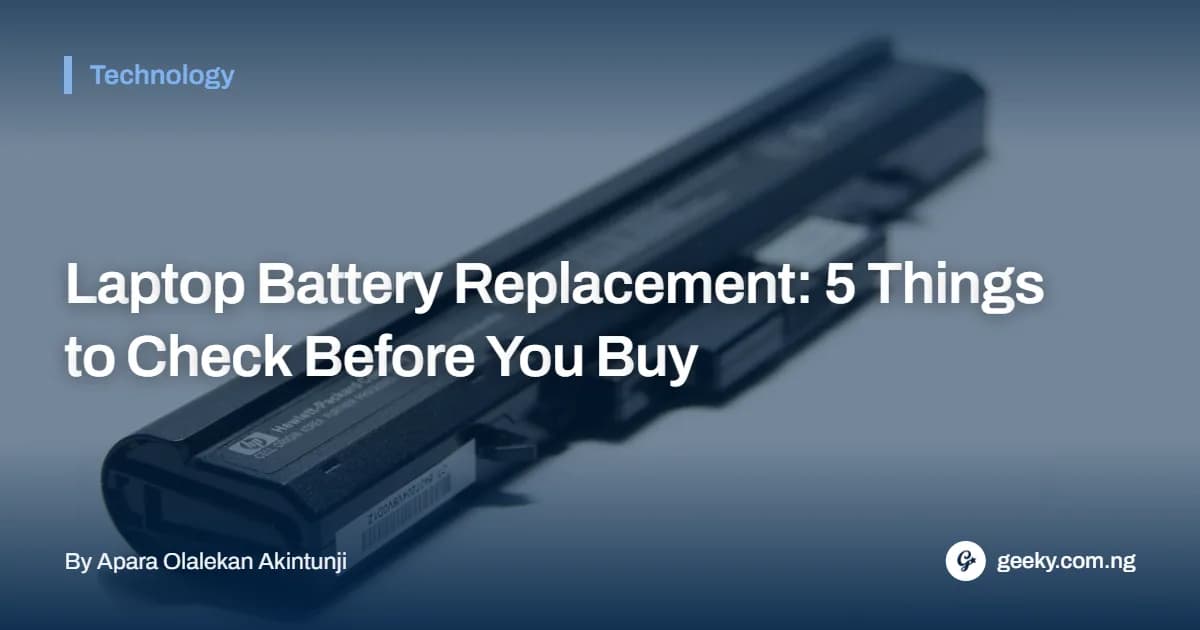
Does your laptop battery drain unusually quickly, refuse to charge fully or shut down unexpectedly? Before spending money on a laptop battery replacement, it is worth finding out what is actually causing the problem.

Photo by Panos Sakalakis on Unsplash
Although rechargeable laptop batteries lose capacity over time, not every charging issue means the battery has reached the end of its useful life. A faulty charger, damaged charging port, power-hungry applications or incorrect battery settings could produce similar symptoms.
Making the wrong diagnosis could leave you spending money on a new battery when the actual issue is somewhere else.
Here are five things to check before arranging a laptop battery replacement.
1. Check the Battery's Actual Health and Remaining Capacity
The first step is to determine whether your battery has genuinely deteriorated.
Laptop batteries gradually lose their ability to hold charge through repeated charging and discharging cycles. As their capacity decreases, you may find yourself charging the device more frequently than before. However, battery age alone does not establish whether replacement is necessary; checking its reported health and capacity provides a better starting point.
Windows users can generate a battery report using a built-in command:
- Open the Start menu and search for Command Prompt.
- Right-click it and select Run as administrator.
- Enter powercfg /batteryreport and press Enter.
- Locate the generated HTML report using the file path displayed in the Command Prompt window.
Pay attention to the Design Capacity and Full Charge Capacity readings. The first shows the battery's original rated capacity, while the second indicates the capacity it can currently hold according to the report.
A substantial decline, typically when accompanied by noticeably shorter battery life, may indicate deterioration.
You can also use your laptop manufacturer's diagnostic application. For example, HP Battery Check can identify battery problems and provide diagnostic results to guide repair decisions.
2. Identify Applications and Settings Draining the Battery
Sometimes, what appears to be a failing battery is actually a software-related power consumption problem.
Applications running in the background can continue using system resources even when you are not actively working with them. Video editing programmes, browser tabs, automatic synchronisation services and other demanding applications can consume considerable power.
Screen brightness, keyboard backlighting and certain connectivity settings can also affect how long your battery lasts.
Before a laptop battery replacement, check which applications are consuming the most energy.
What to do:
- Open Windows Settings and navigate to System, then Power & battery.
- Review the Battery usage section to identify applications consuming significant power.
- Close unnecessary background programmes and browser tabs.
- Reduce screen brightness and select a suitable power-saving mode.
You can also review applications through Task Manager by pressing Ctrl + Shift + Esc.
Dell's battery troubleshooting guide identifies background processes, outdated software, high screen brightness and incorrect power settings as possible causes of faster battery drain.
If your battery lasts considerably longer after adjusting these settings, replacing it may not be necessary.
3. Inspect Your Laptop Charger and Power Adapter
A laptop that refuses to charge may have a problem with its charger rather than the battery.
The power adapter supplies electricity to the device and provides the power required to charge its battery. When the charger becomes faulty, damaged or incompatible with the laptop, charging problems may follow. For example, an underpowered adapter may allow the laptop to operate while failing to supply sufficient power to charge the battery properly.
Before buying a new battery, check the following:
- Inspect the charging cable for exposed wires, cuts or damaged insulation.
- Confirm that the adapter's wattage meets your laptop manufacturer's requirements.
- Check whether the charging indicator responds when the adapter is connected.
- Test with a compatible, known-good charger where available.
For USB-C laptops, make sure the charger and cable support the power requirements of your particular model. A USB-C connector alone does not guarantee that every charger can deliver sufficient power.
Dell's guide to troubleshooting laptop battery problems explains how an unrecognised or incompatible power adapter can interfere with normal charging.
4. Examine the Charging Port for Damage
Another component worth checking is the laptop's charging port.
Repeated plugging and unplugging, accidental cable pulls, or physical damage can affect the connection between the charger and the computer.
You might notice that charging starts and stops unexpectedly, or that the laptop only receives power when the charging cable is positioned at a particular angle.
These symptoms could indicate a loose or damaged port.
Before assuming the battery is responsible, inspect the connection and check for visible debris or damage. Also try a different compatible charger to rule out an adapter problem.
Avoid forcing objects into the charging port or attempting repairs while the laptop is connected to electricity.
Where the port appears loose, damaged or intermittently connected, have a qualified technician inspect the charging socket and internal charging circuit.
5. Check Battery Settings, Software Updates and Physical Condition
Some laptops include battery-management features that deliberately restrict charging to preserve long-term battery health. For example, certain manufacturers offer charging limits that keep the battery below 100 per cent when the laptop is frequently connected to a power supply. Consequently, seeing a charging level stop at 80 per cent does not necessarily mean the battery is defective.
Check your laptop's battery-management application or BIOS settings to determine whether a charging threshold has been enabled.
Also consider checking for relevant firmware, BIOS and battery-driver updates through the manufacturer's official support page.
If the charging issue persists, run the manufacturer's hardware diagnostics and take note of any battery failure codes.
One important safety warning: Check for physical signs of battery swelling, such as an unusually raised touchpad, bulging laptop casing or a distorted keyboard area. If you notice these symptoms, stop using the laptop, disconnect its power supply if safe to do so and seek professional assistance. Do not press, puncture or attempt to remove a swollen battery yourself.
Microsoft's guide to caring for laptop batteries in Windows explains that severely deteriorated lithium-ion batteries can expand and pose a safety risk.
When Is Laptop Battery Replacement Actually Necessary?
After completing these checks, laptop battery replacement may be necessary if diagnostic results indicate a failed or severely deteriorated battery.
Other warning signs include unusually short battery life despite reasonable power settings, repeated unexpected shutdowns when unplugged and an inability to hold charge.
Before purchasing a replacement, confirm your laptop's exact model and battery part number. Choose a compatible battery from the manufacturer or a reputable supplier, and check whether the device is still covered by warranty, where possible.
Final Thoughts
A laptop battery that drains quickly or refuses to charge can be frustrating, but replacing it should not be your first response. Check its actual health, investigate software-related battery drain and inspect the charger and charging port before making a decision.
A proper diagnosis can save you the cost of buying an unnecessary replacement and help you identify the component that genuinely requires attention.
Also read: Google Maps Rolls out Gemini Update on Android and iOS