Buying a refurbished laptop can be an excellent way to get a capable computer without paying the full price of a brand-new device. However, a cheaper price does not always mean a better deal.

Photo by Archie Binamira via Pexels
Some refurbished laptops have undergone proper inspection, component replacement and performance testing. Others may simply be previously used devices that have been cleaned and repackaged for resale. The difference matters, especially when you consider components such as the battery, storage drive and display, which may have experienced considerable wear.
Before paying for that attractive laptop deal, here are seven things to check to make a more informed purchase.
7 Things to Check Before Buying a Refurbished Laptop
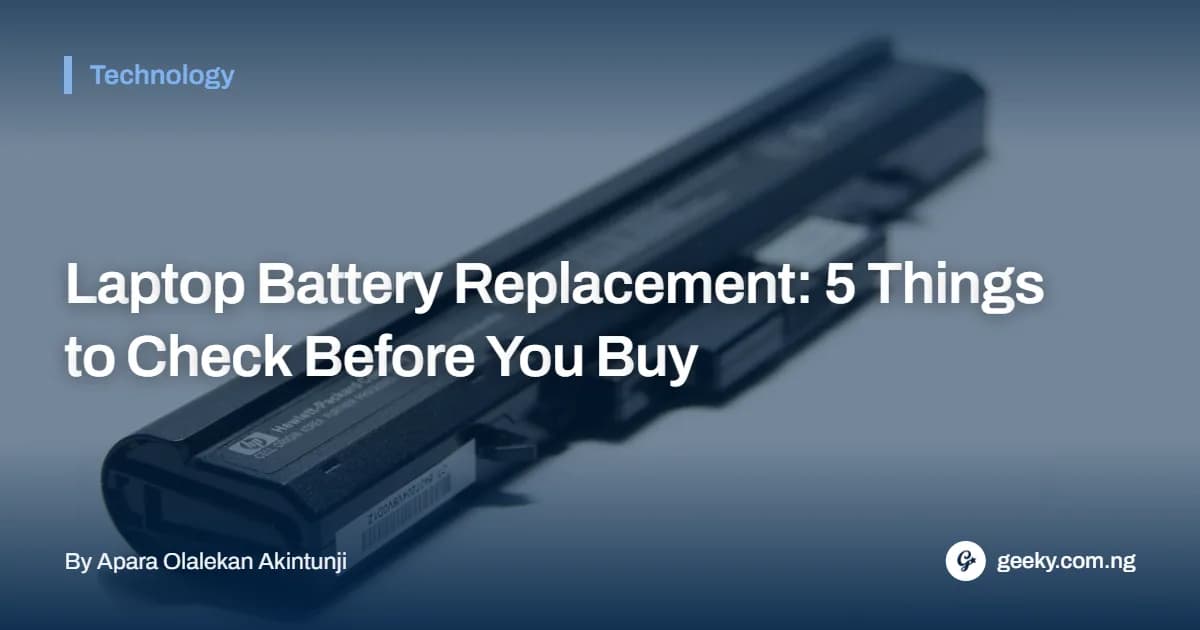
1. Check the Battery Health and Charge Cycles
A laptop may look almost new on the outside but have a battery that can barely last an hour.
Rechargeable batteries gradually lose capacity as they age and go through charging cycles. This is why checking battery health should be one of your first steps when buying a refurbished laptop.
Ask the seller for the battery's current condition, remaining capacity and cycle count, where available.
For Windows laptops, you can request a battery report generated using the built-in Command Prompt tool:
powercfg /batteryreport
The report provides information about the battery's design capacity and full-charge capacity, helping you assess how much capacity it has lost.
On MacBooks, battery condition and cycle count can be checked through System Information under the Power section. Apple's official battery cycle-count guide also explains that maximum cycle limits vary by model.
Do not judge a battery solely by its cycle count. Its actual condition and the laptop's expected battery life matter too.
2. Inspect the SSD Health and Available Storage
The solid-state drive (SSD) stores your operating system, applications and personal files. A laptop with a worn or unreliable SSD could develop performance problems or suffer unexpected data loss.
Before buying, ask the seller to check the drive's health using a suitable diagnostic tool.
For supported Samsung drives, Samsung Magician provides drive-health information and diagnostic features. Other manufacturers also offer their own SSD management utilities.
Pay attention to:
- The SSD's reported health and any critical warnings.
- Its storage capacity and available space.
- Error reports or unusual performance issues.
- Whether the installed drive matches the specifications advertised by the seller.
Also confirm whether the laptop has an SSD or an older mechanical hard drive. A refurbished device advertised with SSD storage should actually contain the stated drive.
To better understand the warning signs and saving your files in case of a failing SSD, you can see more details here
3. Examine the Processor Generation and Performance
A refurbished laptop can have an attractive appearance and reasonable storage capacity but still be outdated in terms of processing power.
Before purchasing, identify the exact processor model and generation. Do not rely solely on descriptions such as Core i5, Core i7 or Ryzen 5, because these names cover several generations with different performance capabilities.
For Intel laptops, you can identify the processor through Windows Task Manager or System Information. Intel's processor identification guide explains how to find the exact model and understand its naming.
Also check whether the laptop supports the operating system you intend to use. For example, Microsoft's Windows 11 requirements include supported processor models, TPM 2.0 and Secure Boot requirements. An older laptop may not meet these conditions even if it runs Windows 10 without difficulty.
Consider your intended use before settling on a processor. A laptop for browsing and document editing may have different requirements from one used for programming, video editing or demanding professional applications.
4. Inspect the Display for Hidden Damage
A laptop screen can look perfectly fine in promotional photographs but reveal problems during actual use.
Before making payment, switch on the device and inspect the entire display carefully. Look for dead pixels, flickering, horizontal or vertical lines, pressure marks and uneven brightness.
You should also check whether:
- The screen has noticeable scratches or cracks.
- Colours appear faded or unusually distorted.
- Brightness changes across different areas.
- The display flickers when adjusting its position.
- The hinges hold the screen firmly without excessive looseness.
Try displaying solid colours, including white, black, red, green and blue, to make certain screen defects easier to notice.
Dell also provides an LCD built-in self-test for compatible laptops, helping users identify display problems such as dead pixels, lines and uneven brightness.
5. Test the Keyboard and Touchpad
The keyboard and touchpad are among the components you will use most frequently, yet buyers sometimes overlook them during quick inspections.
A refurbished laptop may have worn keys, unresponsive buttons or a touchpad that does not register movement properly.
Open a text editor and test every key. Pay attention to missing characters, repeated inputs and keys that require excessive pressure. Also check the touchpad by moving the cursor around the screen and testing its physical clicks, scrolling and supported gestures.
For laptops with backlit keyboards, check whether the lighting works correctly.
A faulty keyboard or touchpad might not stop the computer from working. But replacing either part could add costs you did not expect to what first looked like a bargain.
6. Inspect the Laptop's Physical Condition and Connectivity
Do not allow an attractive exterior to distract you from checking the rest of the device.
Examine the laptop's casing, hinges, base and charging area for signs of physical damage. Loose hinges, cracked corners and badly fitted panels could indicate previous accidents or repairs.
You should also test its connectivity and accessories before buying.
Check the following:
- USB ports and HDMI output, where available.
- Wi-Fi and Bluetooth connectivity.
- Webcam, speakers, and microphone.
- Headphone jack and charging connection.
- Keyboard backlighting and other advertised features.
It is also worth checking that the laptop has no BIOS password, no lock from the previous owner's account and no organisational device-management restriction. Any of these could stop you from using it freely.
For a MacBook, confirm that Activation Lock has been removed before completing the purchase.
7. Understand the Refurbishment Process, Warranty, and Return Policy
The final check is just as important as the hardware inspection.
The word refurbished does not automatically tell you how much work was performed on a laptop. Ask the seller whether the device underwent proper diagnostic testing, whether any components were replaced and what condition grade it has received.
More importantly, request the warranty and return terms in writing.
Before paying, establish:
- How long the warranty lasts and when it begins.
- Whether the battery, SSD, screen and other components are covered.
- Whether repairs, replacements, or refunds are available when a fault appears.
- How much time you have to report a problem or return the device.
Ask for a receipt showing the laptop's model and serial number. Also confirm whether the warranty is provided by the manufacturer or the retailer. A laptop sold without a clear warranty or return policy could leave you responsible for repair costs shortly after purchase.
Is Buying a Refurbished Laptop Worth It?
Yes, a refurbished laptop can offer good value, provided its condition, specifications, and warranty match the asking price. But in all of these, the candid advice here is to compare the total cost rather than concentrating only on the initial discount. A cheaper device that requires a new battery, SSD, or screen may eventually cost more than another laptop with better documented condition.
For buyers interested in exploring different laptop options, Geeky Nigeria's comprehensive laptop review and buying guide offers additional reading.
Final tip: Never rush a refurbished laptop purchase simply because the seller describes it as a limited-time offer. Request the relevant diagnostic information, inspect the actual device and understand the warranty before making payment.